MaelonSign in

What's new

Every release shipped to Maelon. We update this page each time something noteworthy lands — features, improvements, fixes, polish.

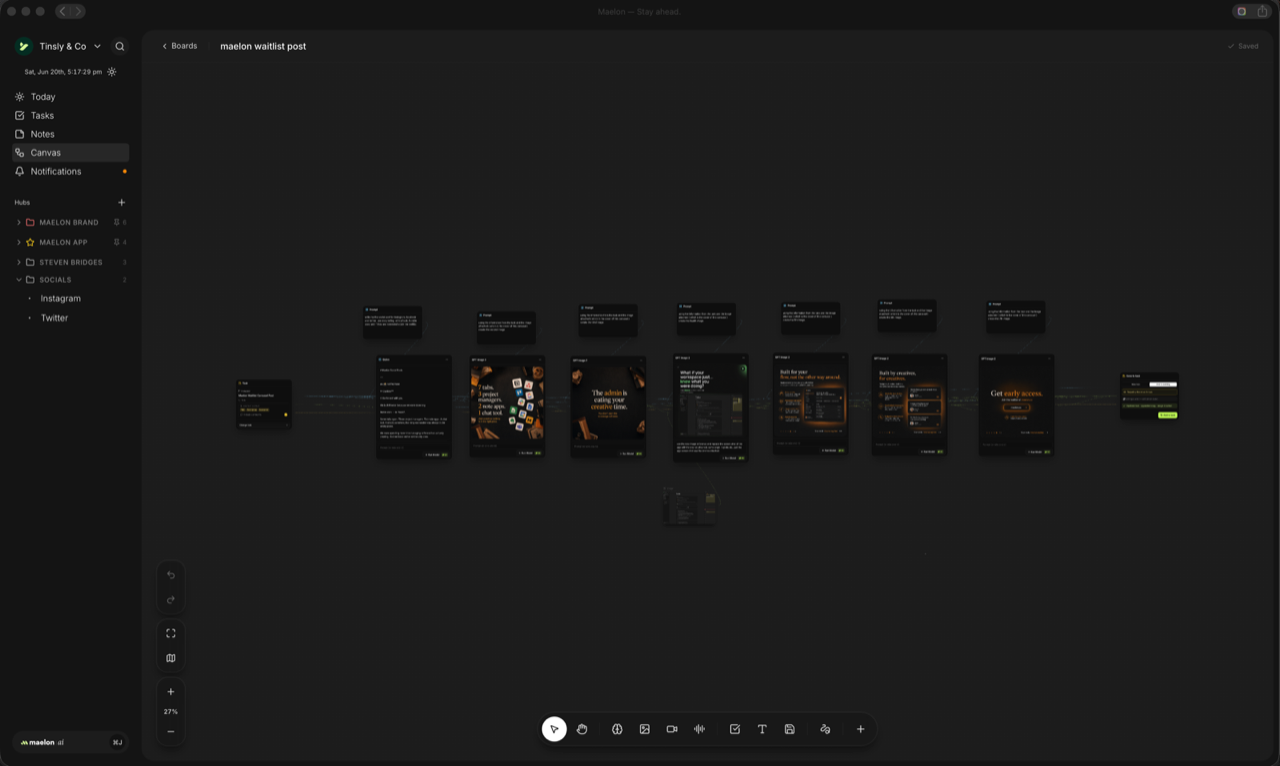
Introducing Canvas — your creative studio
UpdateJune 19, 2026

Introducing Canvas — your creative studio

Feature

Maelon has always been where you plan your work. Today it becomes where you make it.

Meet Canvas: a creative studio built right into Maelon. Open a board and generate images, video, and voiceovers with AI on an infinite canvas — then drag what you make straight onto your tasks. From a spark of an idea to a hero image to a storyboard to a script, it all lives in one place, connected to the work you're already doing.

No more bouncing between ten different tools. Think it, make it, ship it — without ever leaving Maelon.

Quinn got a beautiful new look too, with your credits live at the top so you always know where you stand — and the whole app now feels great on mobile. This is just the beginning of Maelon as your creative studio. Much more on the way.

UpdateJune 3, 2026

Share a note with a teammate

Feature

Notes used to be a quiet, private thing. You wrote one and it stayed yours until you copied the link or pasted the text somewhere else. Today that quietness gets a door.

Open any note and you'll see a new field at the top called Add person. Pick a teammate from your workspace and the note shows up in their list, tucked under a Shared with me folder. The folder only appears when there's actually something inside it, so the sidebar stays calm until a share gives it a reason to show up.

Every shared note carries the name of the person who sent it. Your teammate sees who it came from at a glance, and the moment you share, a soft notification lands in their inbox.

If you change your mind, click the X next to their name and the share is gone. If they change theirs, they can decline it from their side and it disappears from their list too. Either way, both sides end up where they want to be.

UpdateJune 3, 2026

Studio AI is visible again

Fix

If you tried picking the Studio AI plan recently and the button looked grayed out, that wasn't your screen. A color token mix-up had us painting the button the same shade as the background, so it read as disabled even though it wasn't.

It's now the brand lime it should always have been, ready to click.

UpdateJune 3, 2026

Manage your subscription, end to end

Fix

The Manage subscription button used to occasionally throw a wall of internal error text on click. We've cleaned up that whole path. It now opens your billing portal cleanly. If something on our side genuinely breaks, you get a calm sentence and a way to reach us, not a stack trace.

UpdateJune 3, 2026

Calendar events that actually land

Fix

If you ever created a calendar event in Maelon and refreshed to find it missing here while it sat happily in Google, that was us dropping the row from our side after a successful save. The new flow drops nothing. Saves land instantly, and if a save is still in flight when you click away, the panel stays open until it finishes so you always know where you stand.

UpdateJune 3, 2026

Finding a hub got faster

Improvement

When you hit New task and the hub list spilled past your screen, picking the right one meant scrolling. Now there's a search box at the top of the picker. Type a couple letters and the list narrows. The picker also caps its height so it never covers the task form again.

UpdateJune 3, 2026

Fullscreen Quinn, fluffed and folded

Polish

Quinn's fullscreen view got a sweep. The sidebar reorganized around workspaces and date buckets so old chats are easier to find. The top bar moved inside the chat column so the rail can stay calm. Long runs of tool calls now collapse into one tidy group instead of stacking endlessly. The composer feels denser without crowding. Same Quinn, sharper room.

UpdateJune 3, 2026

Notifications go where they say

Fix

Click a notification, land on the thing it's about. That used to fail in a couple of small ways. Clicking a task notification before your tasks finished loading silently stripped the link. Your morning briefing notification pointed at the wrong room. Both are fixed. Tap, land, get on with it.

UpdateJune 3, 2026

Delete your account, end to end

Improvement

You can now delete your account, or any workspace you own, without writing to us. The button confirms by asking you to type your email, then it takes care of everything in one motion. If you had an active subscription on a workspace you're deleting, that gets canceled on the way out so nothing keeps charging quietly in the background.

UpdateMay 23, 2026

Conversations live in your tasks now

Feature

Tasks used to be quiet. The work happened there, the conversation happened somewhere else — usually a Slack thread you'd have to dig up later. Today that split closes. Every task in a shared workspace now has a thread of its own, right where the work lives.

Open any task and you'll see a Comments tab next to Details. Drop in a thought, a question, a quick update. Hit Enter and it goes. Your teammates see it the second you send.

@-mention someone to pull them in. They get a soft notification in their inbox and a friendly email — gentle but immediate, so nothing important slides past. If you'd rather skip the email side of mentions, Settings → Notifications → Mentions has a switch waiting for you.

The composer comes with the joyful little extras you've come to expect from a good chat. An emoji picker for the small celebrations. A GIF picker for the bigger ones. Paste a screenshot and it lands inline. Drag a file from your desktop and it uploads in place. Click any image in the thread to open it full-size — a Download button saves it straight to your downloads folder.

And while we were in there: Quinn reads PDFs now. Drop one into a Capture chat and she'll read every page — perfect for that proposal you want summarized, or the contract you'd like a second pair of eyes on.

UpdateMay 20, 2026

Your team, ready for real

Feature

Teams have been on Maelon for a couple of weeks. This week we tightened every screw so you can put real ones in front of it.

Invites are smoother. The emails are prettier. The landing between clicking a link and seeing your workspace feels like a welcome, not a loading bar. People who already have Maelon skip the magic-link dance entirely — they just appear in your workspace with a friendly note.

Roles got real. Promote a member to owner, transfer the keys, demote yourself when you're handing off — all from Settings → Team. The workspace will never accidentally end up ownerless.

Privacy lives at two levels now. Lock a single hub when only you need it. Lock a whole folder when a category of work is yours alone — every hub inside follows the folder. A little lock icon shows you what's private at a glance.

Working with clients? Guest access is in. Invite someone with a hub binding and they see only that hub — your other work stays out of view.

Hubs got watchers. Subscribe a teammate to a hub and they get a quiet notification whenever something happens there. It's the calm way to keep an eye on a project without sitting in it all day.

Edits move in real time. Your teammate checks a task off, you see the check land. They assign you, you see it within a second. No refresh.

And a little extra love: links inside notes and task descriptions are real, clickable links now — type the words you want, paste the URL, hit go. They open in a new tab in Maelon's signature lime. The slash menu's /link command asks for both pieces and inserts a tidy anchor.

UpdateMay 19, 2026

Put faces on the work

Feature

Last week your team showed up. This week the work knows who's on it.

Every task in a shared workspace now carries a little pile of avatars — the people on it, right there on the row, on the kanban card, on the detail panel. Click the pile to open a picker, tap a teammate (or two, or four), done. The change lands instantly for everyone in the workspace.

Capturing a task auto-assigns you, because the most common thing you'll do is jot something down and own it. Pass it off later by tapping the avatar and picking someone else. Need to see only your own plate? The /tasks sentence filter now reads "Show me todos for Just me" — one click and the noise fades away.

Solo workspaces stay solo. If you're the only person in your workspace, the avatars never appear — no extra UI, no extra thinking. The calm experience is still calm.

Invitations got nicer too. New folks land on a soft welcome page — just your name and an optional photo — and step straight into the shared workspace, no "set up your first hub" detour. Pending invites show how fresh they are ("Just sent" / "Sent 4h ago" / "Expires in 5d"), with a Resend button right next to Cancel. And cancelling has an undo, in case you meant a different email.

The emails got dressed up while we were at it — lime button, your workspace name in the subject, a real Maelon logo at the top.

UpdateMay 19, 2026

Bring your team along

Feature

Maelon's been a quiet place for one. Today it grows up — invite your team and start working out of the same hubs.

Open Settings → Team and drop in a teammate's email. They get a magic link, sign in (or sign up, if they're new), and they're in. Your hubs become their hubs: every task, note, and contact filed under a project shows up for everyone. Edit anything, anywhere — the team sees changes in seconds.

The personal pages stay personal. Your /today briefing, your Tasks page, your Notes page, your Contacts — those are still yours alone. Only what you file under a hub gets shared. Drop a quick 'buy milk' into Tasks and nobody else ever sees it. Drop a 'kickoff agenda' into the Acme hub and the whole team reads it.

Sidebar folders are personal too — each person organizes hubs and notes the way they like. Your sidebar, your way.

Owners can invite people, cancel pending invitations, and remove members. Anyone can leave a workspace any time. The last owner can't accidentally remove themselves — Maelon makes sure the workspace stays manageable.

Free for guests when we ship that next. For now: members share full access, and clients can be added soon.

UpdateMay 19, 2026

See your tasks the way you think about them

Feature

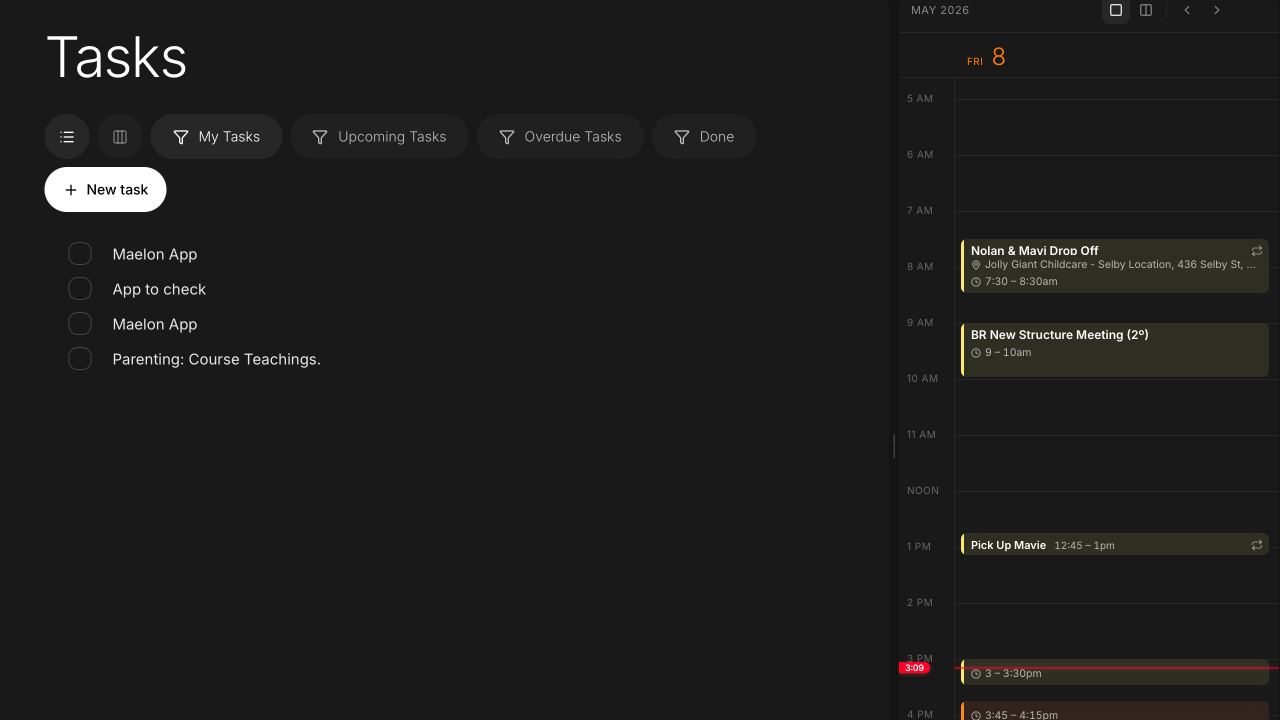
Some weeks your tasks live as a tidy list. Some weeks they live as a board — to-do, in progress, done, with cards you drag between them. Maelon now does both, and remembers which one you prefer for each hub (and for your full task list, too).

Open any hub, tap the board icon next to the New task button, and watch the page reshape into three calm columns. Drag a card from TO DO into IN PROGRESS — it moves. Drop it into DONE and it's checked off, with the same confetti and undo you already know from the list. Drop it back out and Maelon un-completes it. No fuss.

Every card shows what matters at a glance: priority as a colored stripe down the left edge, your due date, your labels, and a little file icon when there's a description waiting inside. Click the card to open it in full. Press N to spin up a new card right at the top of TO DO and start typing.

When you have lots of tasks, each column scrolls on its own — your page stays put, your board breathes. Switch back to the list view any time. Maelon remembers.

UpdateMay 19, 2026

A nicer way to set a time

Polish

Setting a due time used to bring up whatever clunky picker the browser felt like showing — different on every browser, ugly on most. Not any more. Maelon now opens its own calm three-column wheel: hour, minute, AM or PM. Scroll each one like the iPhone alarm, it snaps to your choice, and the popover stays tidy because the wheel folds away until you actually want it.

UpdateMay 19, 2026

Undo and updates, tucked into one quiet spot

Polish

When you check something off, the little date strip in your sidebar now quietly shows what you just did — with a draining timer and a tap-to-undo. Five seconds of breathing room, no floating toast in the middle of your screen.

When Maelon ships an update, the same strip lights up in our brand lime: "Relaunch to update." Tap it whenever you're ready. Nothing interrupts your flow.

UpdateMay 19, 2026

Notifications that wait their turn

Polish

When a few reminders land at once, they no longer pile up across your screen. They stack like a tidy deck at the bottom — newest at the front, each waiting two calm seconds for its moment. Hover the stack and the cards fan out so you can read every one — the timers pause while you're looking, and resume the second you move away.

UpdateMay 14, 2026

Your work and personal calendars, finally in one place

Feature

You shouldn't have to flip between apps to remember if your kid's pickup falls during your team standup. Now you don't.

Hop into Settings, open Calendars, and connect another Google account. Personal Gmail, second work email, your partner's shared family calendar — pick whichever ones you want and they all show up in Maelon together. One view. The whole picture of your day.

If the same meeting lives on two calendars, you'll only see it once. Decide which calendars you actually want visible. Pick the colors you like for each. Change your mind anytime.

Disconnect any account whenever you feel like it — Maelon lets go cleanly. Your data, your call, always.

UpdateMay 13, 2026

AI that quietly makes your day easier

Feature

The blank-page feeling is over. AI is tucked into every place in Maelon where you write, ready when you want it and out of the way when you don't.

Highlight a sentence in any note or task and a little AI button appears. Tighten it. Stretch it. Soften it. Make it more confident. Polish the grammar without changing your voice. The text swaps in right where it was.

Just typed a long meeting note? Type /summarize and three clean bullets appear at the top, ready to share. Got a wall of brainstorming? Try /find-tasks — Maelon reads through it, pulls out the action items, and you tick which ones you actually want to do. Done.

Opening a contact? Draft an email to them from a single line of context, or get a quick read on where things stand with that person — last conversation, what's open, what to follow up on. The kind of prep that used to take ten minutes.

Use it generously. No credits to count, no usage anxiety. Just calm, useful, every time you need it.

UpdateMay 13, 2026

A light side of Maelon

Feature

Some people work better in the morning sun. Some people work better next to a lamp at midnight. Maelon's ready for both now.

Pop into Settings → Appearance and pick Light. The whole app softens — clean white cards floating on a calm gray backdrop, events keep their colors, everything stays warm and readable.

Or leave it on System and Maelon follows your Mac. Dark in the evening, light in the morning, all without you lifting a finger.

UpdateMay 13, 2026

A calendar that breathes

Improvement

The hours on your calendar feel a little more spacious now. Events have room to show their title, time, and where they're happening without crowding each other. Same calendar, calmer.

UpdateMay 13, 2026

Dark mode comes home

Improvement

Maelon's always been dark by design — calm, focused, easy on the eyes. New folks signing up now land straight there. Light and System are both still one click away whenever you want them.

UpdateMay 13, 2026

A nicer way to add links

Polish

Adding a link to a note used to trigger that clunky browser pop-up. Now a soft little panel slides in right where you're typing — paste your URL, hit Enter, done. Feels like Maelon.

UpdateMay 13, 2026

Quietly safer, behind the scenes

Fix

Some careful work happened under the hood to tighten how your data is protected. You won't notice anything different — and that's the point. Your stuff stays yours.

UpdateMay 12, 2026

Make Maelon yours

Improvement

A real Settings panel, opened from the workspace menu in the sidebar. One place for the stuff that should always have been there.

Profile picture, with your initials as the friendly fallback. Upload one in two clicks, or leave it to your initials on a color that's the same every time you sign in.

Workspace gets its own face too — click the avatar to pick from ~150 icons across a dozen categories, set a color, or upload a custom image. Your workspace name and icon now live at the top of the sidebar where they belong, instead of pretending to be you.

While we were in there: rename your workspace inline, and a carefully-guarded way to delete it.

UpdateMay 12, 2026

New notes and tasks now appear the instant you click

Improvement

Creating a note or task used to wait for a server round-trip before anything appeared. From São Paulo, Tokyo, or Sydney, that wait could stretch to a second or more. Now they land on screen immediately and sync in the background.

Same goes for ⌘J Capture, the New Note button in the sidebar, the New Task dialog — every create path. Whatever happens after (opening the editor, focusing a title, dragging onto the calendar) waits politely behind the create so nothing lands at Supabase out of order.

UpdateMay 12, 2026

An invisible bug that broke buttons for some users — fixed

Fix

A clock-skew hydration mismatch was crashing the React tree on every page for users far from UTC. Most US users barely noticed, but some buttons (notably "New Note") were rendering as inert HTML — looked clickable, did nothing.

The fix touches every page. Everything should feel a touch more responsive everywhere.

UpdateMay 11, 2026

A calmer way to work through your tasks

Feature

A small mountain of polish on the tasks side of Maelon, all aimed at the same thing: making the day feel quieter, the list feel cleaner, and the wins feel a little more like wins.

Checking off a task now plays out the way you'd hope. The title strikes through, the row dims, and it slides down to a "Done today" section at the bottom of your list. The count keeps you company until the next morning. After 4am the day resets quietly on its own.

New tasks land at the top now, not the bottom. Press N from anywhere on the tasks page to start typing one without reaching for the mouse. Press ⌘Enter to save and immediately type another. The inline input opens right where the new task will live, so the moment feels connected.

The filter at the top reads like a sentence now: show me a kind of task, in a place, due in a window. The hub picker remembers you across refreshes by carrying the hub in the page address, so reloading the page or sharing a link both just work.

Unfiled tasks have a friendlier name. They're called Personal now. Same tasks, same place at the top of your hub list, with a little count showing how many are waiting.

And if you change your mind about anything you just did, undo lives in a small toast at the bottom of the screen for five seconds after every check, archive, and uncheck. ⌘Z anywhere in the app brings it back.

UpdateMay 11, 2026

Three small upgrades you will notice

Improvement

The icon picker just got a lot more interesting. The little set of forty grew into a library of over a hundred and fifty, sorted into rooms like Work, Food, Animals, Symbols, and a few more besides. Type rocket or salad or paw into the search box at the top and the right one floats up.

Dragging a note or hub into a folder used to misfire when the folder was already open with stuff inside it. The middle drop zone is back to being reliable, no matter how full things get in there.

And if you ever tried signing in with a Hotmail or Outlook account and ended up stuck in a sign-in loop, that was Microsoft's email scanner clicking the link before you got a chance. Sign-in now uses a short code you type in instead of a link. Nothing for the scanner to grab.

UpdateMay 11, 2026

Mention tasks and notes inside your writing

Feature

When you're writing a note and need to point at a specific task or another note, you can now do it inline. Type a forward slash, pick mention a task or mention a note, search, and the right one drops in like a little linked pebble in the sentence.

Click any mention to jump straight to it. If the thing you mentioned gets renamed later, the chip updates to match. If you delete it, the chip stays in your note as a quiet reminder it used to exist.

It feels small. It changes how the notes hold together.

UpdateMay 11, 2026

A home for your reflections

Feature

Every evening you write something. A line about the day, a few sentences about what you noticed, the small thing that stuck with you. Those reflections used to mix in with everything else in your notes.

Not anymore. There's a Reflections folder at the top of your notes sidebar now, and every reflection you save lands inside it. Pinned, marked with a little moon, ready when you want to look back.

If you've been reflecting for a while, every past one has already moved itself into the new folder. Open it whenever you want to see how the week looked when you slowed down.

UpdateMay 10, 2026

Notes get folders

Feature

The notes sidebar finally looks like the hubs sidebar. Folders at the root, unfiled notes alongside them, a pinned section floating at the top for the handful you reach for every day.

Drag a note into a folder to file it. Drag a folder around to reorder. Pin the ones you need close. Right-click anything for the full menu: rename, move, archive, delete.

A few quiet stretches of writing finally have somewhere to live.

UpdateMay 10, 2026

A handful of small fixes

Improvement

Dragging hubs around folders finally behaves the way you'd expect. Hover near the top and it lands above. Hover in the middle and it slips inside. Hover near the bottom and it tucks below. No more accidental sleepovers in folders you were only passing by.

Maelon's icon is the same orange mark everywhere now. The tab, the dock, the home screen, the little square on your phone. One face, no more impostors.

Clicking a hub title on the tasks page to rename it used to give the whole page a tiny hop. It stayed still in some browsers, jumped in others. Now it sits perfectly still in all of them. Type, hit enter, move on.

And the scrollbar inside the hub sidebar has politely stepped out of frame. Scrolling still works exactly the same. The bar just isn't there to look at anymore.

UpdateMay 10, 2026

Pin a folder to the top

Feature

Some folders deserve a permanent spot at the top of the list. The one you live in. The one with this week's everything. The one you open ten times a day.

Now you can pin them, just like you've always pinned hubs. They float up to join the others at the top, ready when you are.

Unpin anytime and they slip back into the lineup, exactly where they were before.

UpdateMay 10, 2026

A few small things

Improvement

Confirm dialogs match the rest of Maelon now. No more pale system box crashing the party. The same warm dark, the same quiet edges, the same room you've been in all along.

Right-click a folder and you can spin up a new hub right inside it. The folder opens itself so you can watch the new arrival land where it belongs.

Over on the tasks page, click the title to rename your hub on the spot. Type, hit enter, done. No detour, no dialog.

And that little 'Hub' label that used to sit under the title? Gone. The title speaks for itself.

UpdateMay 10, 2026

Drag a task into a hub

Feature

Pick up a task. Carry it across the room. Drop it into the hub it belongs to. The hub warms up to greet you on the way in, and the task lands at the top of its new home with a quiet little glow.

No menus, no extra clicks. The same easy lift you already know, now reaching all the way across.

UpdateMay 10, 2026

Hubs you can actually arrange

Feature

Reordering your hubs feels like reordering a stack of paper now. Pick one up and the rest stay perfectly still. A thin warm line shows you exactly where it'll land. Let go, and it's there.

Drop on a folder to slide a hub inside. Drop in the gap between two things to nest right between them. Folders move the same way. The whole sidebar finally listens.

UpdateMay 10, 2026

Folders and hubs share the same line

Feature

Your folders used to live up top. Loose hubs underneath. A neat little hierarchy, whether you wanted it or not.

Now they all share one line. Drop a hub between two folders and it sits right there, exactly where you put it. No rules about who goes where. The order is yours.

UpdateMay 10, 2026

A small fix

Fix

Folders you'd closed used to spring back open after a refresh. Now they remember. Closed stays closed, until you say otherwise.

UpdateMay 10, 2026

A softer welcome for folders

Polish

Drop a hub onto a folder and the folder no longer flashes back at you. Just a thin warm outline and a quiet inner glow, sitting cleanly inside its own edges. It feels less like a warning, more like the folder leaning in to catch what you're handing it.

UpdateMay 10, 2026

Hubs sit flush with their neighbors

Fix

Hubs used to feel a half-step shy. The little glow when you hovered, the soft fill when one was open, both stopped short of the edge while folders ran the full distance. Now everything reaches all the way across, including the rename field, so the whole list lines up like it always should have.

UpdateMay 10, 2026

Hubs slide right into folders

Feature

Picking up a hub feels like picking up a pebble now. Drop it on a folder and it just goes in. Closed folders stay closed, the count quietly ticks up, and if you change your mind halfway, let go anywhere else and it stays right where it was.

The little move-to-folder menu got the same kindness. Instead of unfurling a list of every folder you own, it opens a small searchable popup. Type a few letters, hit Enter, done.

UpdateMay 10, 2026

New hubs start with a dot

Polish

Fresh hubs now arrive wearing the smallest possible mark. A quiet little dot, holding the spot until you decide what it should really be. Anything you already made stays exactly as you left it.

UpdateMay 10, 2026

Folders open without the wobble

Fix

Folders used to do a little stretch on the way open, like they were waking up. Now they just open. Quiet, immediate, out of your way.

UpdateMay 10, 2026

The sidebar exhales

Fix

Things had drifted a little. A stray gap here, an awkward breath there. We tucked everything back into place. Same sidebar, just standing up a bit straighter.

UpdateMay 10, 2026

Meet Hubs

Feature

Your work has a shape. Maybe it's a few big projects, a couple of side things, that one list you keep meaning to tend to. Hubs let you finally lay it all out the way it actually lives in your head.

Make one for anything. A project, a part of life, a list you love. Give it a name, an icon, a color it deserves. Tuck a few into a folder. Pin the ones you live in so they're always right where your eye lands first.

Open a hub and you only see its world. Step back to Tasks and you see everything at once. It's the same work you've always had. Just, at last, somewhere it belongs.

UpdateMay 10, 2026

Scrollbars, but quieter

Polish

Scrollbars used to clear their throat. Now they barely whisper. A slim line that lets you know there's more to see, then politely steps aside.

Rich text + slash commands
UpdateMay 8, 2026

Rich text + slash commands

Feature

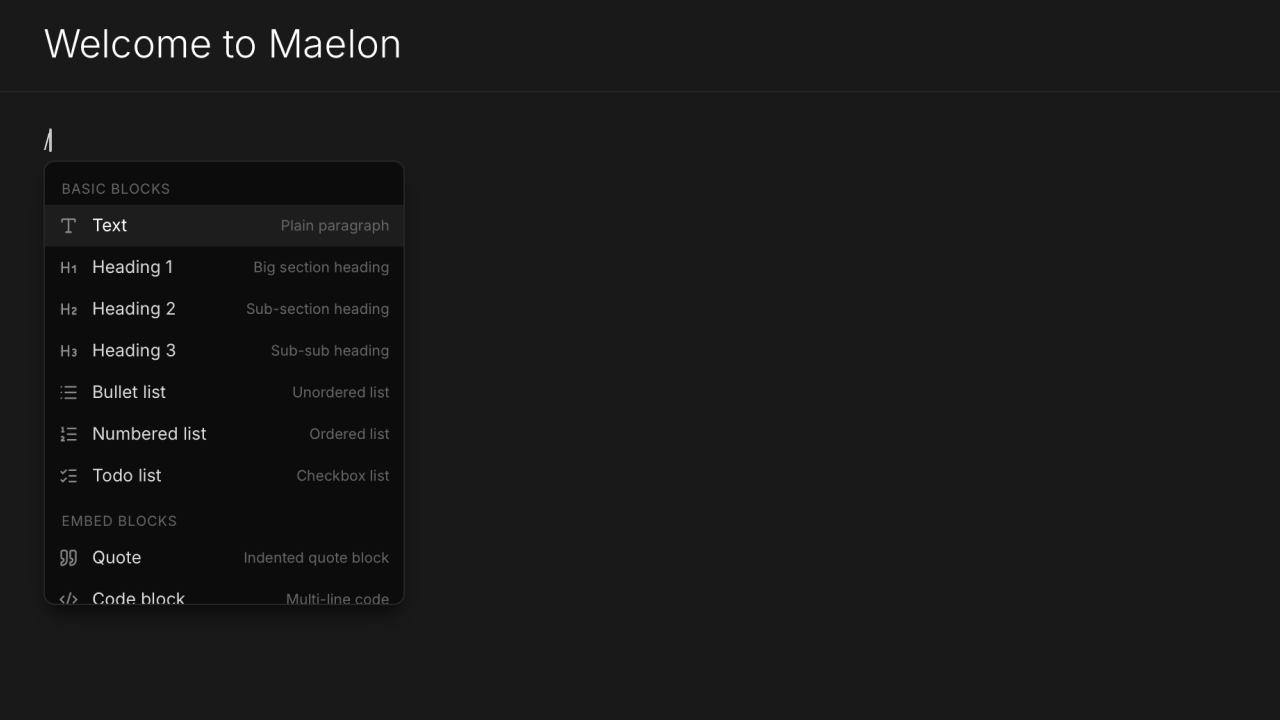
Notes and task descriptions both speak rich text now. Type / anywhere to drop in a heading, list, todo, code block, divider, or a quick today/tomorrow/now insert — fifteen commands across four groups, navigable with arrow keys.

Highlight any text to bring up the bubble menu for bold, italic, code, links, and the rest.

UpdateMay 8, 2026

Right rail polish

Polish

Click anywhere outside the rail to close whatever panel is open. Switching between tasks no longer animates close-then-reopen — the content just transitions in place.

The rail-collapse mode is gone. The button is back on the to-build list if anyone asks for it.

Today is now a real dashboard
UpdateMay 7, 2026

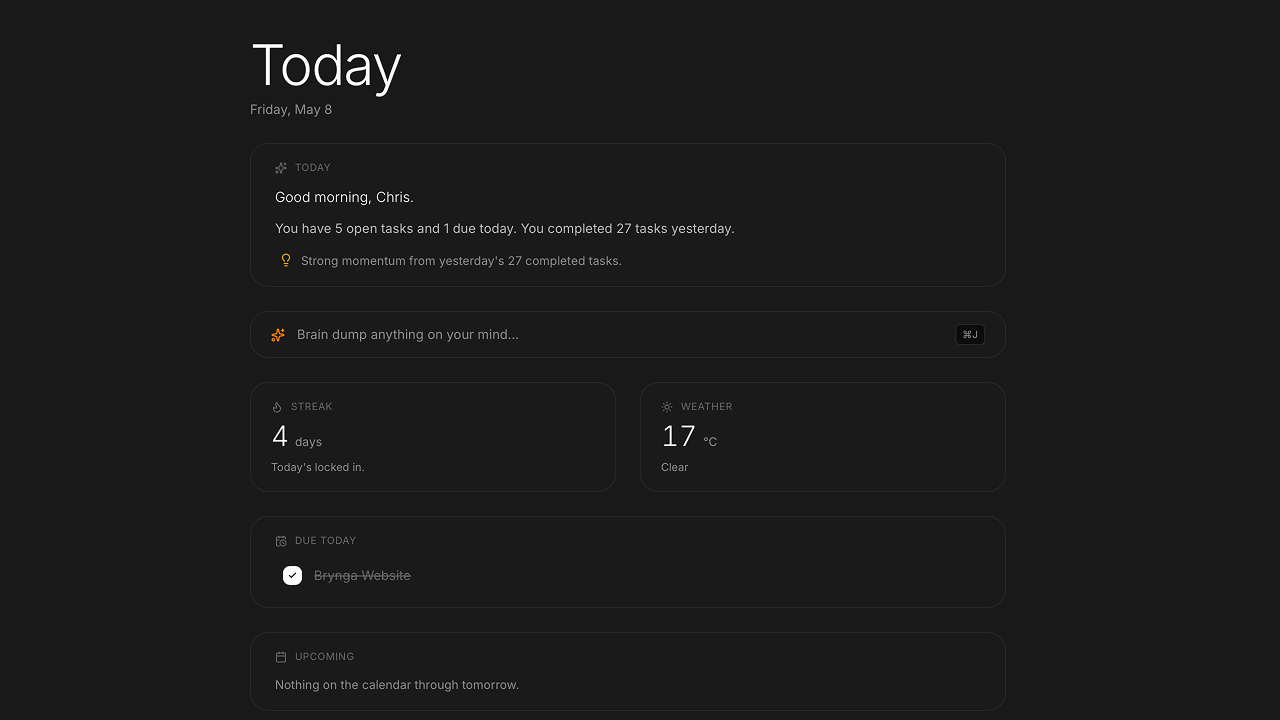
Today is now a real dashboard

Feature

The Today page got six new cards: tasks due today (with inline checkboxes), upcoming events from your calendar, a streak counter, the local weather, your most recent notes, and an end-of-day reflection prompt that quietly appears after 6pm.

Capture (⌘J) is also a tap away from the page itself now.

UpdateMay 7, 2026

Maelon now opens instantly

Improvement

Tasks, notes, and calendar events all hydrate from your device on every reload — no more loading spinner before the data shows up. In the background, Maelon silently revalidates against the server so anything that changed elsewhere catches up without you noticing.

Calendar cards, iOS-style
UpdateMay 7, 2026

Calendar cards, iOS-style

Improvement

Calendar events now match Apple's iOS Calendar look — a colored accent bar on the left, subtle tinted background, location and time with their own icons. Drag the edges to resize; the new time floats next to the block while you drag.

Event details got a real form too: alerts, repeat schedules, attendees, Google Meet, and a Mapbox-backed location autocomplete.

© 2026 Maelonmaelon.co